CSS-Cascading style sheet
Introduction
The most important in CSS is to learn how to target the HTML elements in a webpage. We can embed CSS in two ways. Either includes <style> element inside the element or create a separate file with filename.css extension. Inside the filename.css, the file contains the CSS properties to design the web page beautifully. If CSS is embedded in a separate file, use the <link> element to link the CSS file with the HTML file.
Example of CSS embedded in the same HTML file.
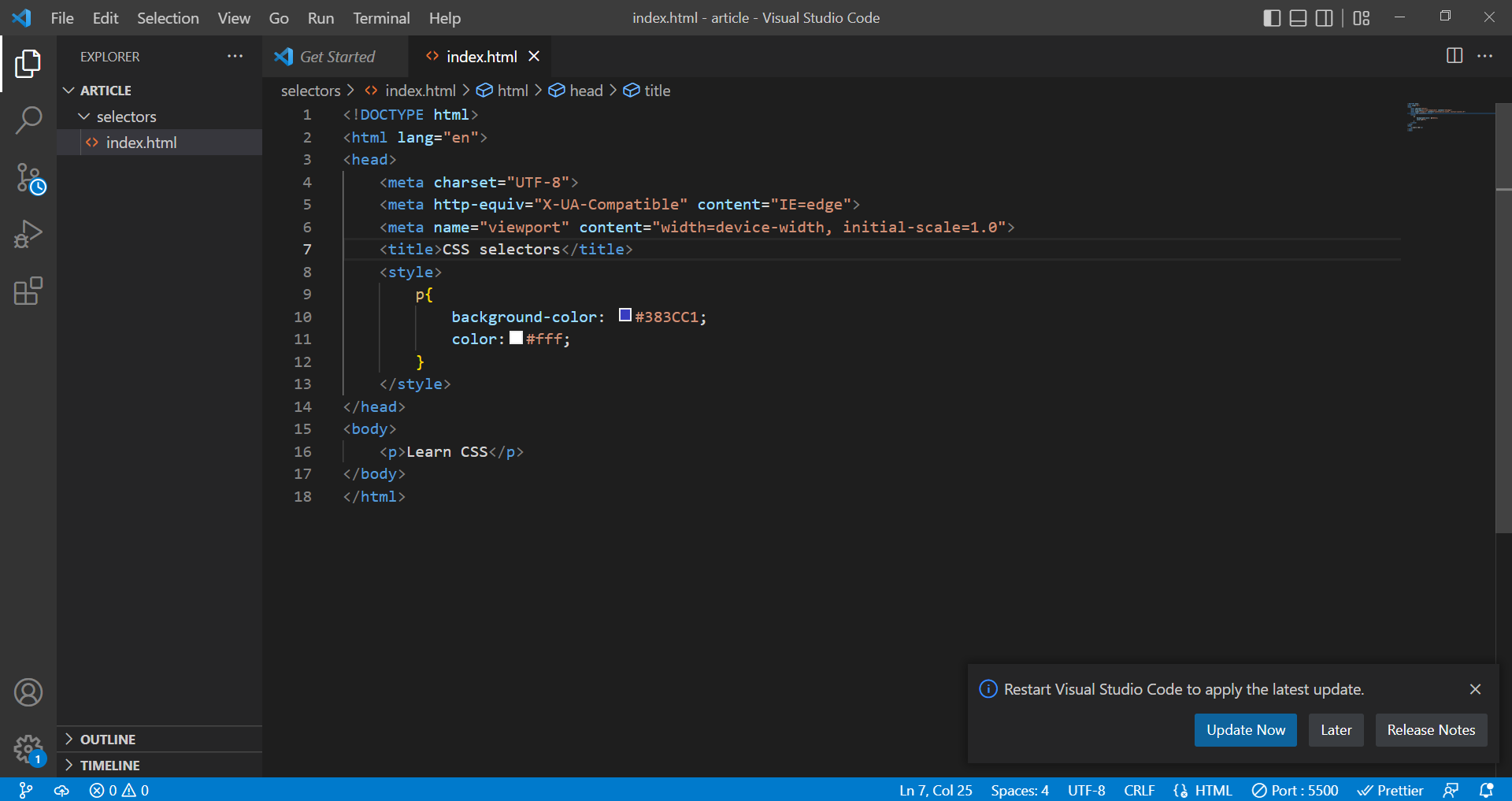
The result of CSS embedded in the same HTML file
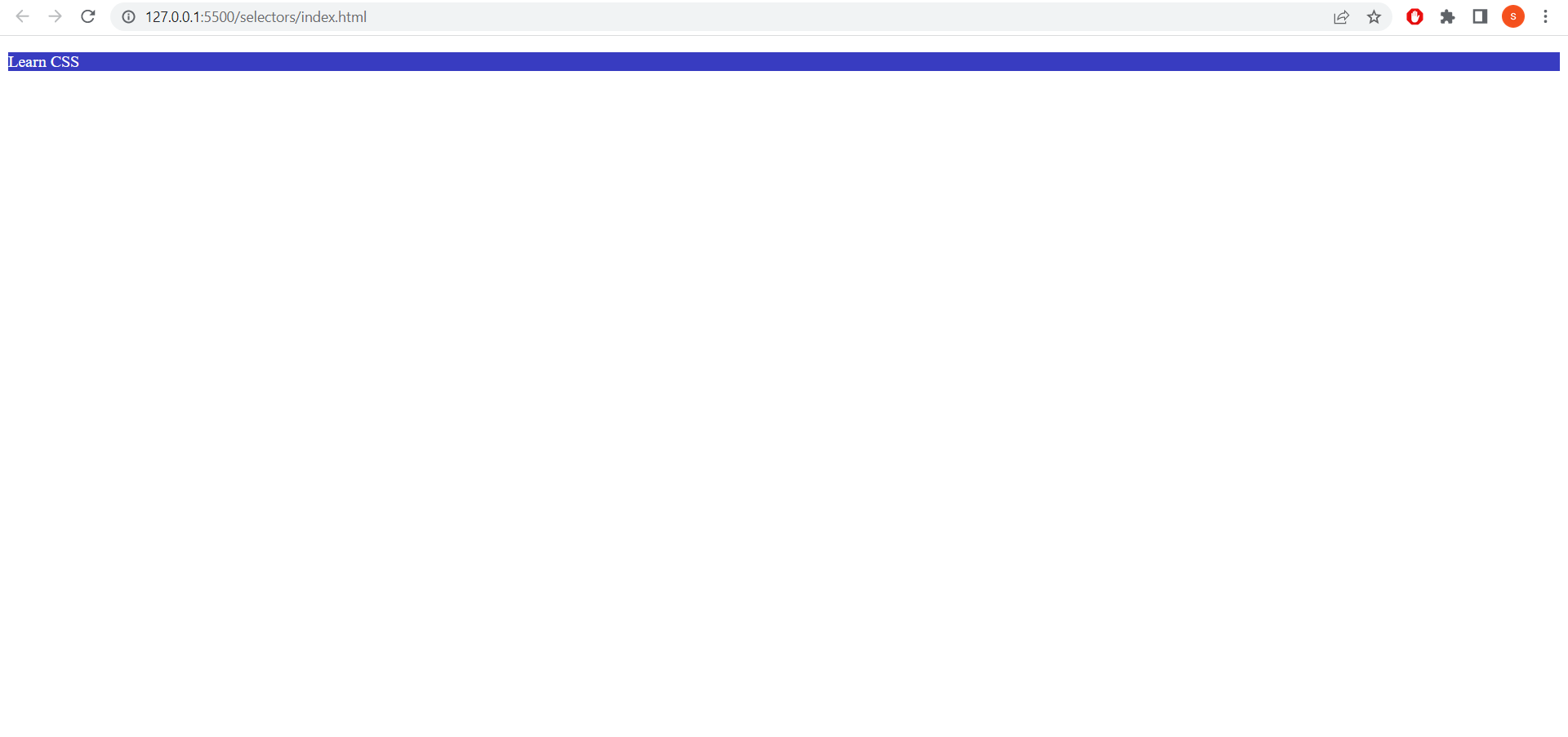
Example of CSS embedded in a different file with ".CSS" extension.
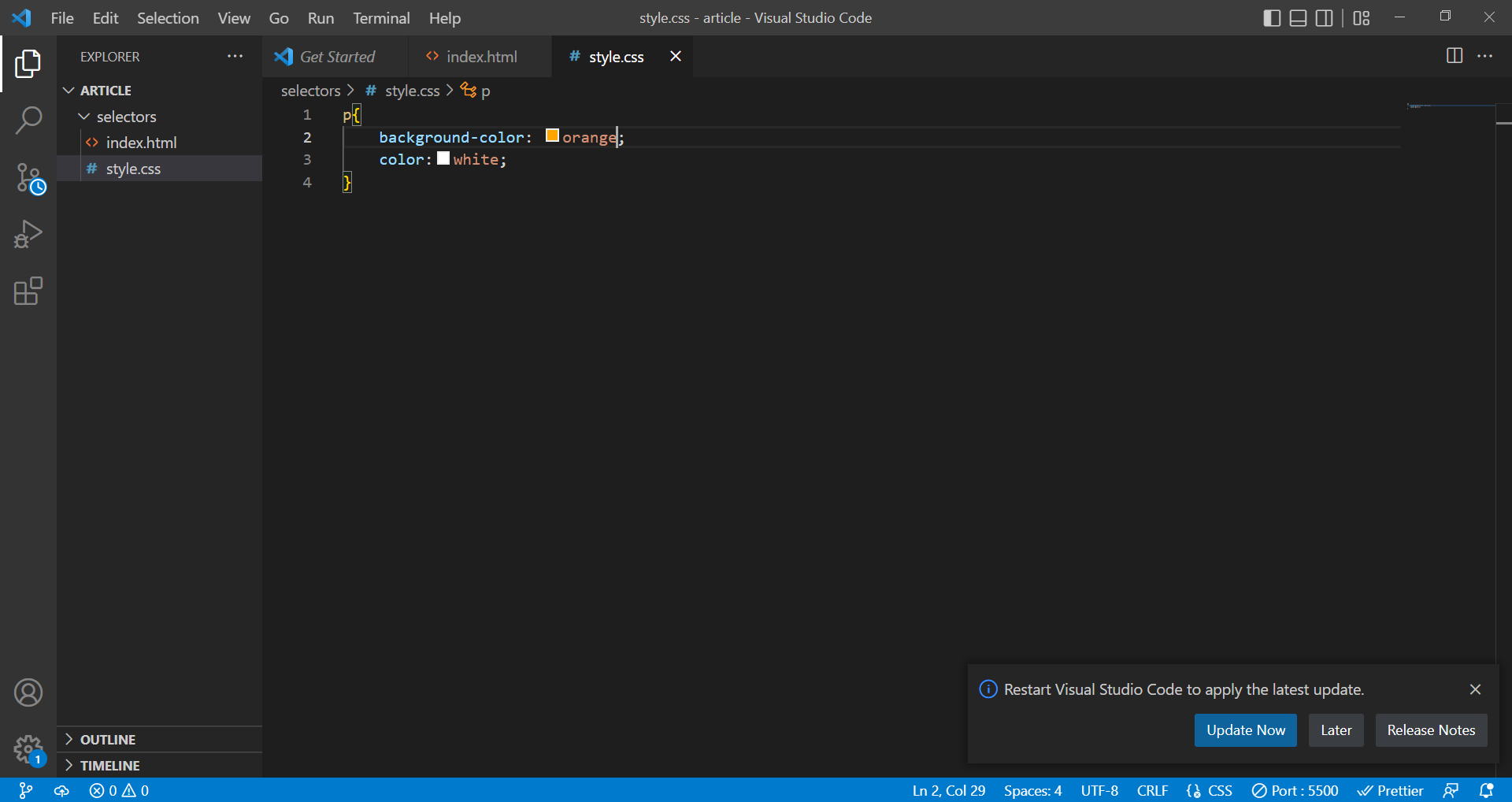
The result of CSS embedded in a different file
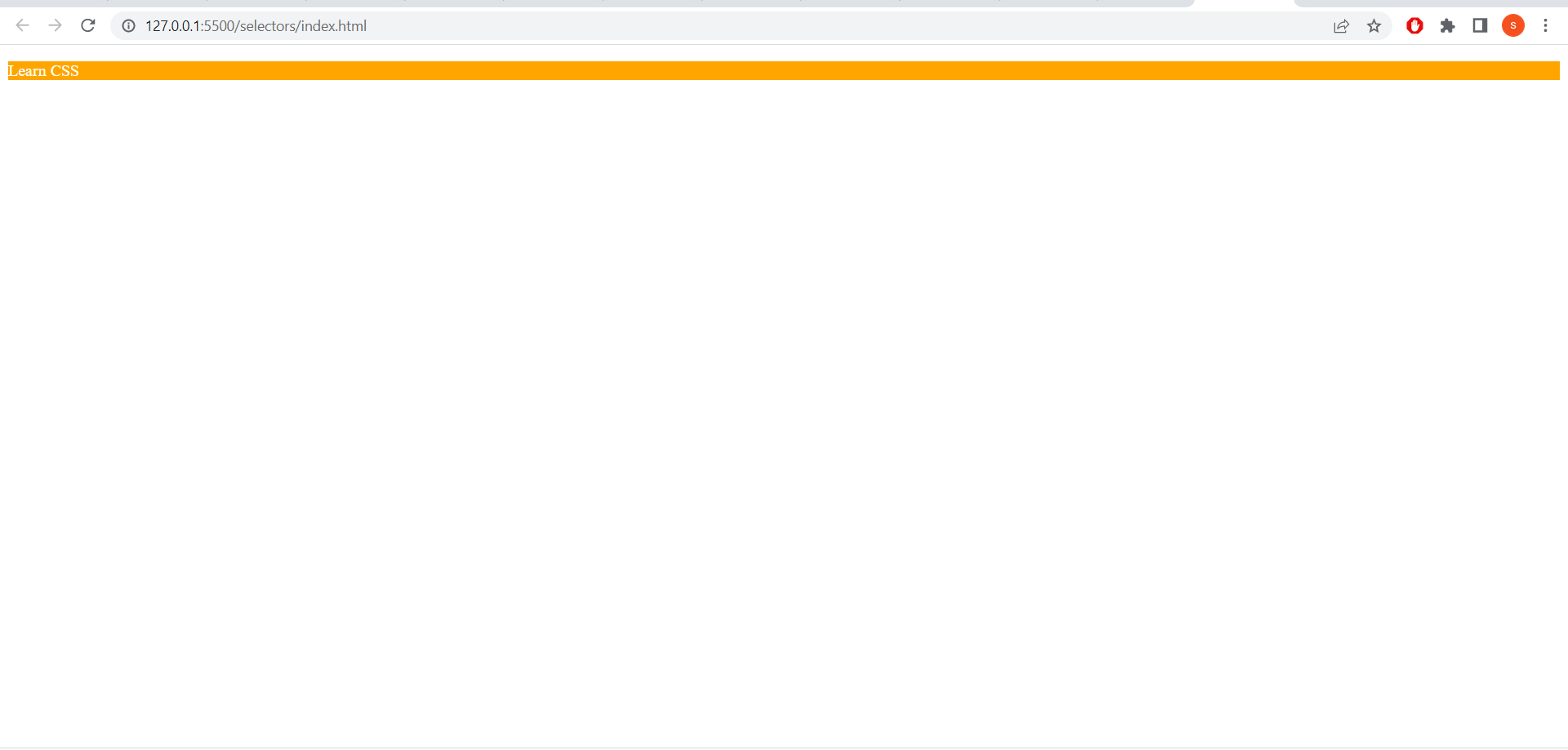
Both ways will give the same results.
We have different types of selectors. They are
1. Universal selectors:
They select everything on the web page. It is denoted by an asterisk(*). Generally, this type of selector is used to remove the browser's default settings like removing default margin and padding.
Syntax: *{ style properties }
*{
margin:0;
padding:0;
}
Example of Universal selectors:
*{
background-color:blue;
color:white;
}
<p>Learn CSS </p>
<h1>Hello Everyone</h1>
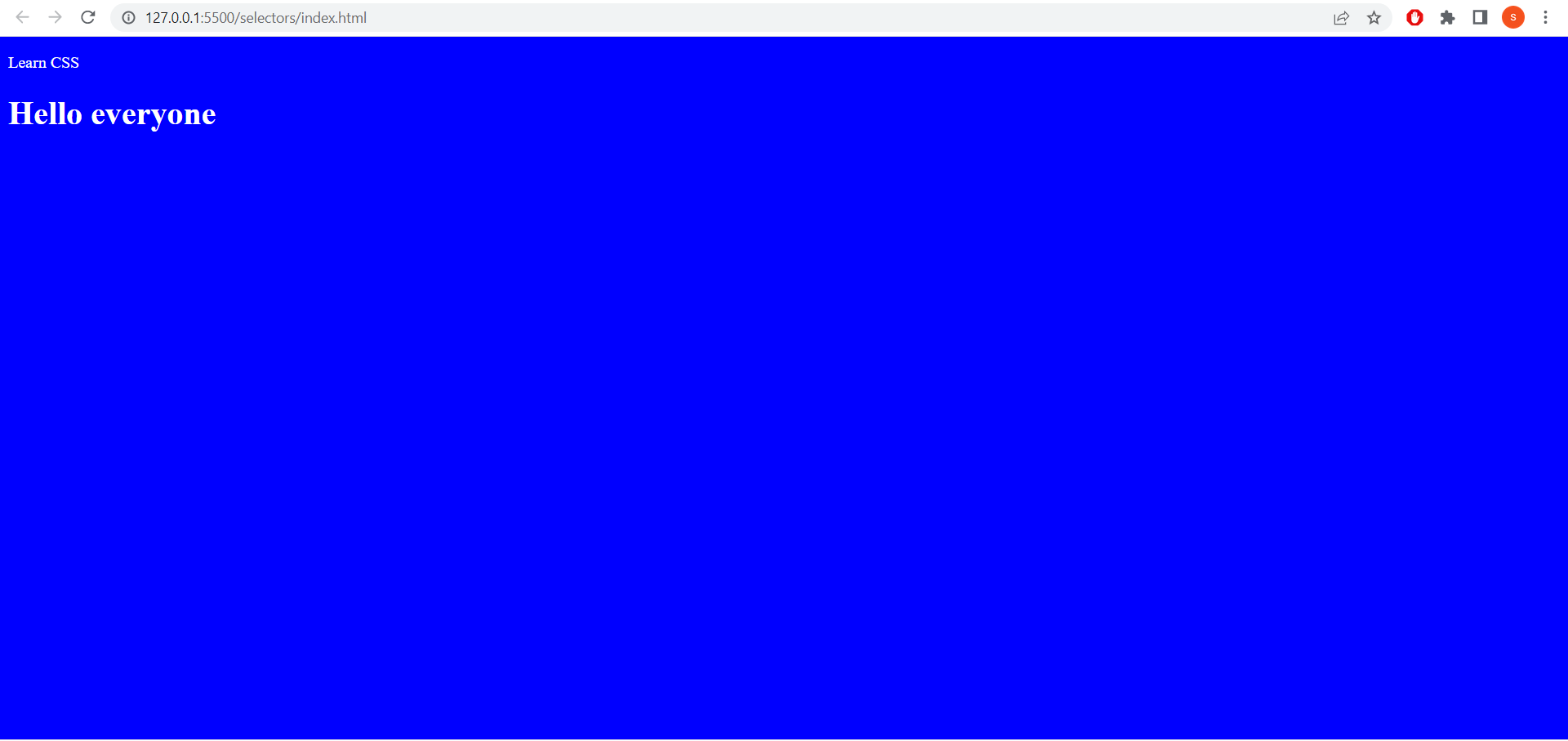
Result of Universal selector:
2. Individual selector:
They select the HTML elements by name.
Example of individual selector:
p{
background-color:#841717;
}
<p>Learn CSS</p>
<h1>Hello everyone</h1>

<article>
Nov 14 is celebrated as Children's day</p>
<ul>
      <li>Pizza</li>
       <li>burger</li>
      <li class="bread pizza">sandwich</li>
            <li>chocolates
                <p>Paragrapgh inside List</p>
            </li>
  </ul>


</article>
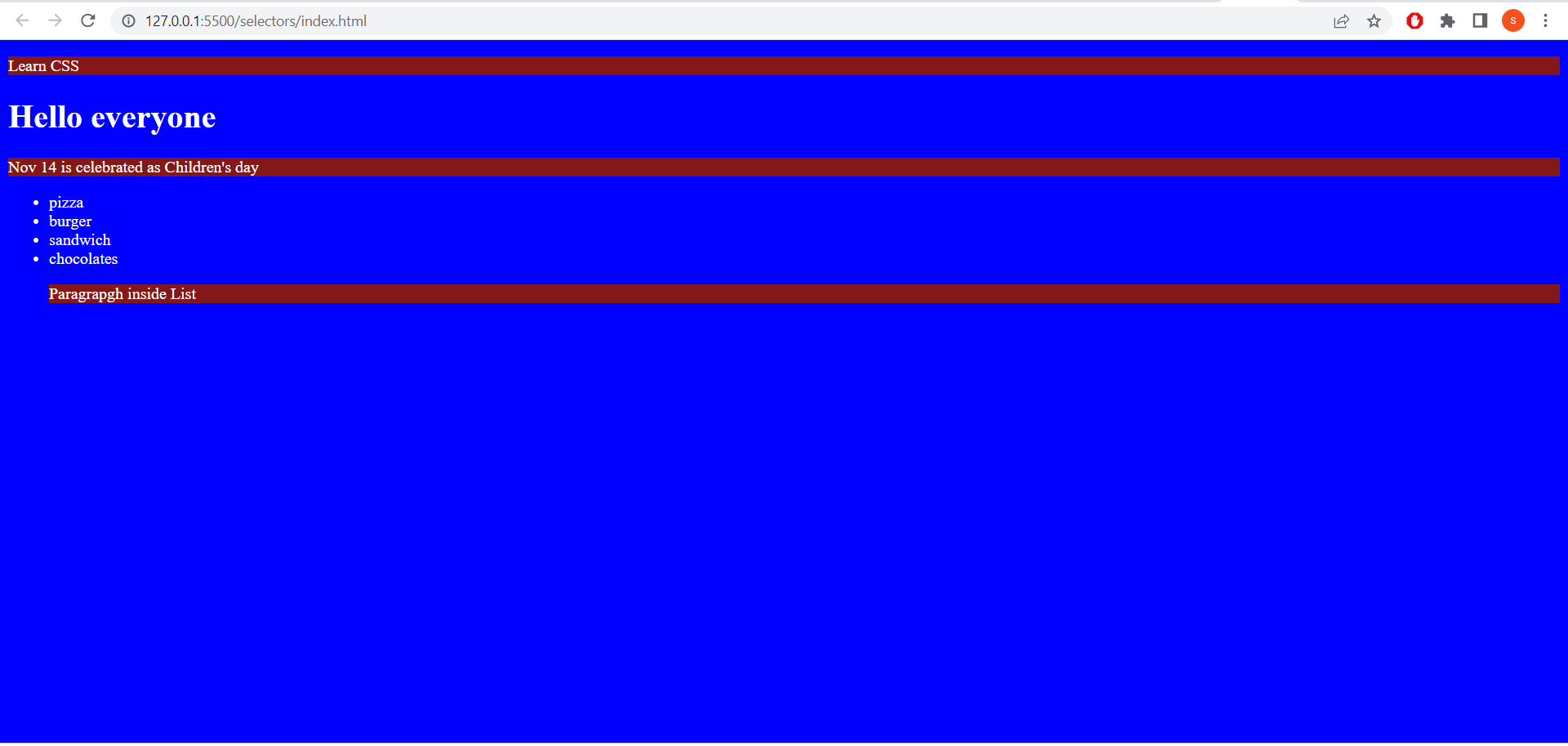
Result of individual selector
3. Class and ID selector:
class selector selects the elements based on the class attribute mentioned in an HTML document. It selects multiple elements with the same class name. Class name starts with a dot(.). Example of Class selector:
.list1{
            background-color: #13993b;
            color:black;
        }
<div>
        <ul>
            <li>Inside list 1
                <li class="list1">HTML</li>
                <li id="inside">CSS</li>
                <li>Javascript</li>
                <br><br>
            </li>
            <li>Inside list 2 <br>
                <li class="list1">Angular</li>
                <li>React</li>
                <li>VueJs</li>
            </li>
        </ul>
    </div>
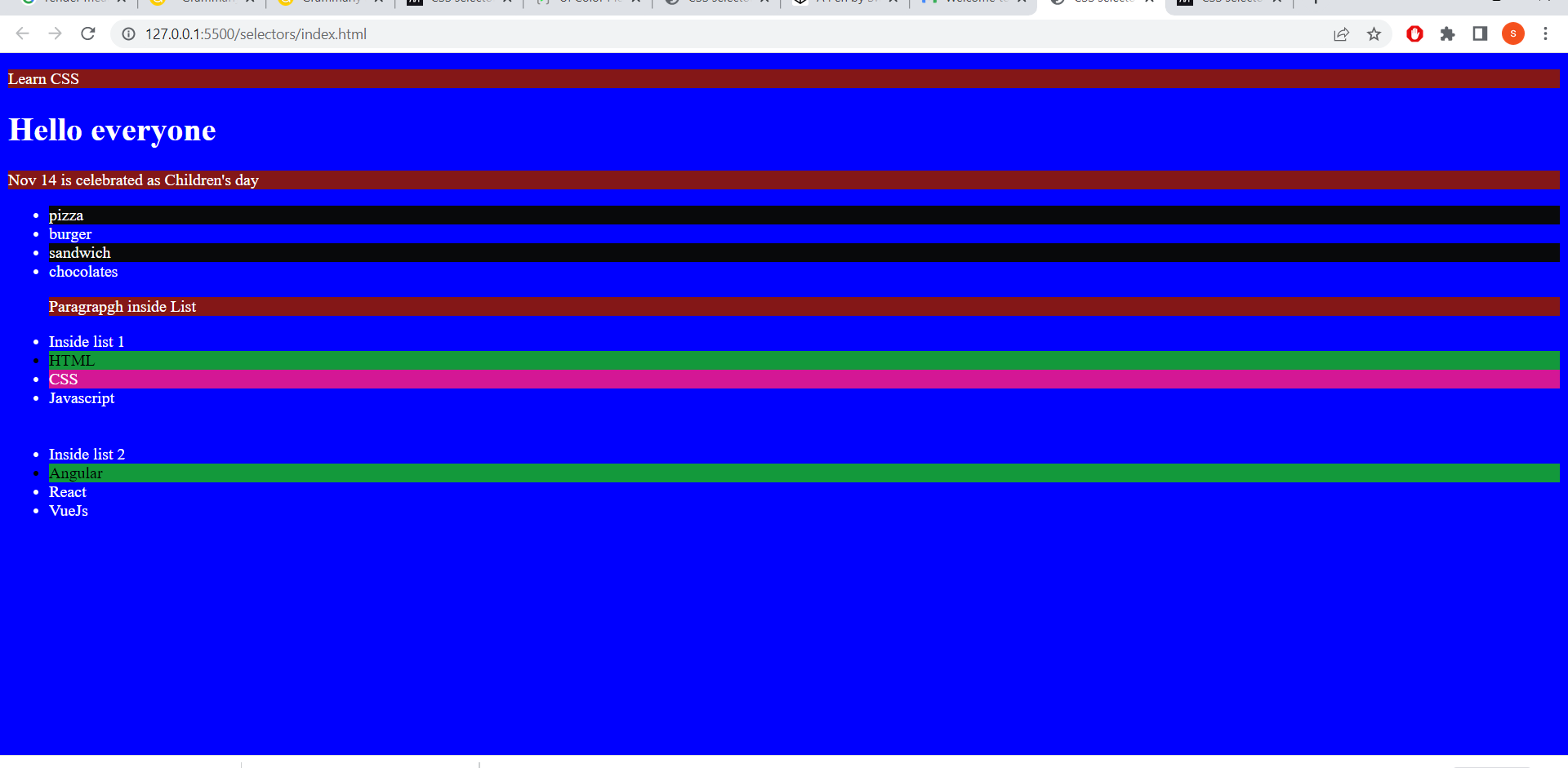
Result of class selector:
ID selector:
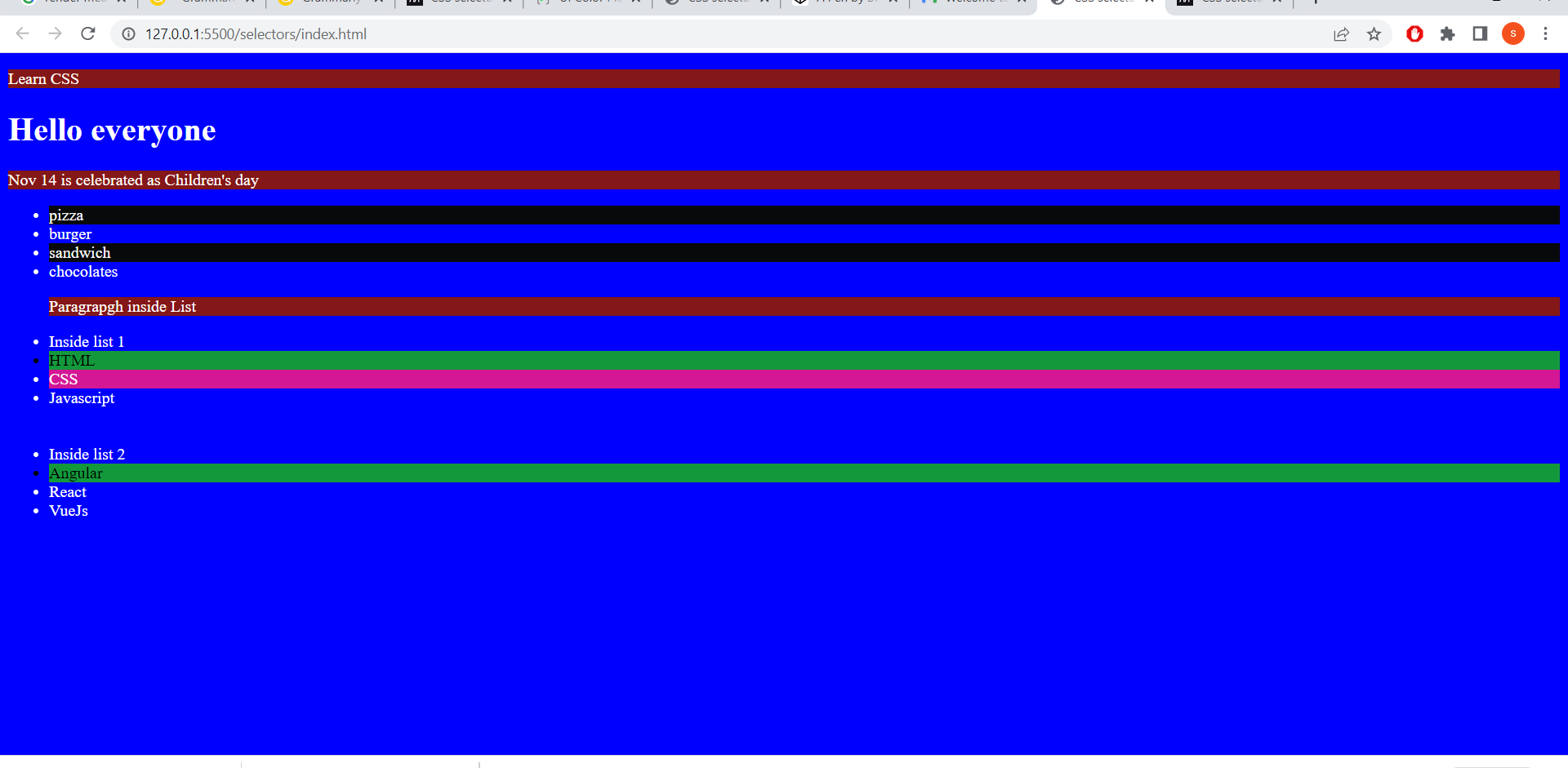
The ID selector selects the elements uniquely in an HTML document.Should not have two same id names in the HTML document. ID selector starts with "#".
Example of ID selector:
#inside{
            background-color: #d41795;
        }
<div>
        <ul>
            <li>Inside list 1
                <li class="list1">HTML</li>
                <li id="inside">CSS</li>
                <li>Javascript</li>
                <br><br>
            </li>
            <li>Inside list 2 <br>
                <li class="list1">Angular</li>
                <li>React</li>
                <li>VueJs</li>
            </li>
        </ul>
    </div>
4. Chained selector:
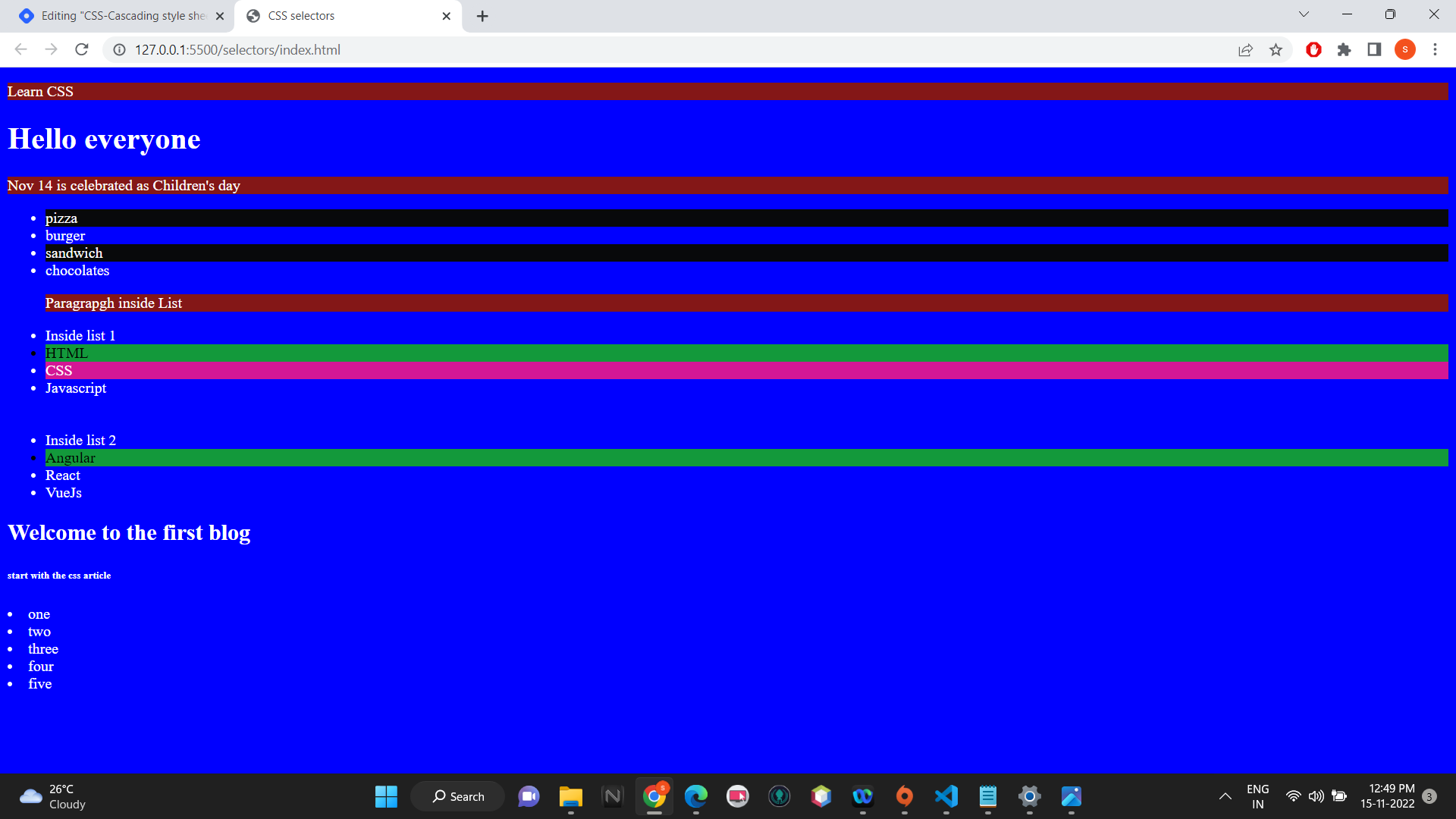
Chained selector is also called as and selector. If we need two conditions to be true use chained selector. Suppose two elements have the same class name. One of the elements has one extra class name. Now you want to select the element which has the extra class name. In that case we need to provide two class names to target the element. Then use the chained selector.
Example of Chained selector:
li.bread.pizza{
            background-color: #08090b;
            color:#FFF;
        }
<article>
        <p>Nov 14 is celebrated as Children's day</p>
        <ul>
            <li class="bread pizza">pizza</li>
            <li class="bread">burger</li>
            <li class="bread pizza">sandwich</li>
            <li>chocolates
                <p>Paragrapgh inside List</p>
            </li>
        </ul>
    </article>
5. Combined selector:
Combined selector is used when multiple elements get the same CSS property.
Example of Combined selector:
 h2,h6
        {
            background-color: #fff;
            color:#000;
        }
<h2>Welcome to the first blog</h2>
    <h6>start with the css article</h6>
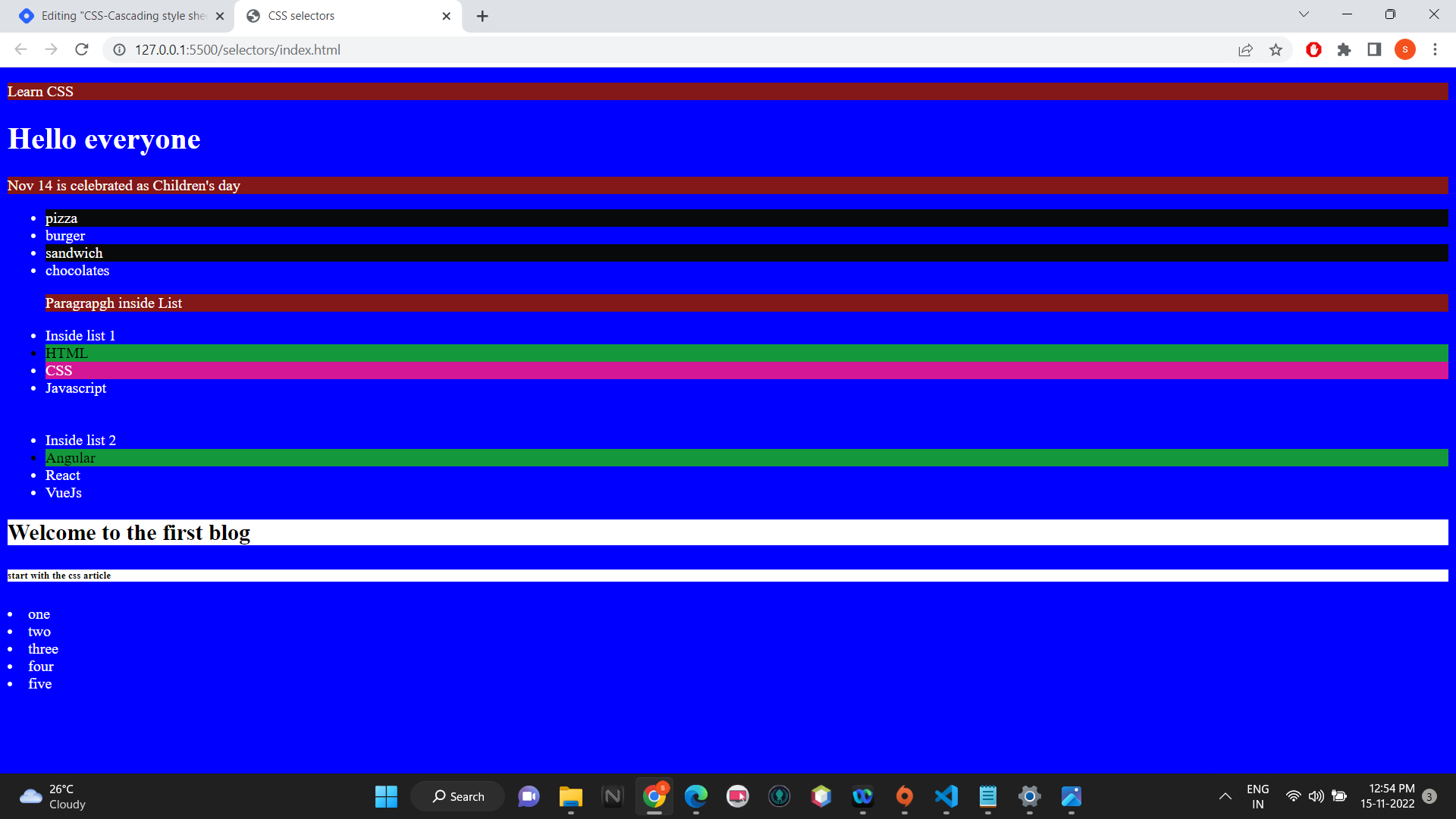
Result of combined selector
6. Inside an element:
It selects the particular child element from the parent element path. Example of inside an element
article ul li p{
            background-color: yellow;
            color:black;
        }
<article>
        <p>Nov 14 is celebrated as Children's day</p>
        <ul>
            <li class="bread pizza">pizza</li>
            <li class="bread">burger</li>
            <li class="bread pizza">sandwich</li>
            <li>chocolates
                <p>Paragrapgh inside List</p>
            </li>
        </ul>
    </article>
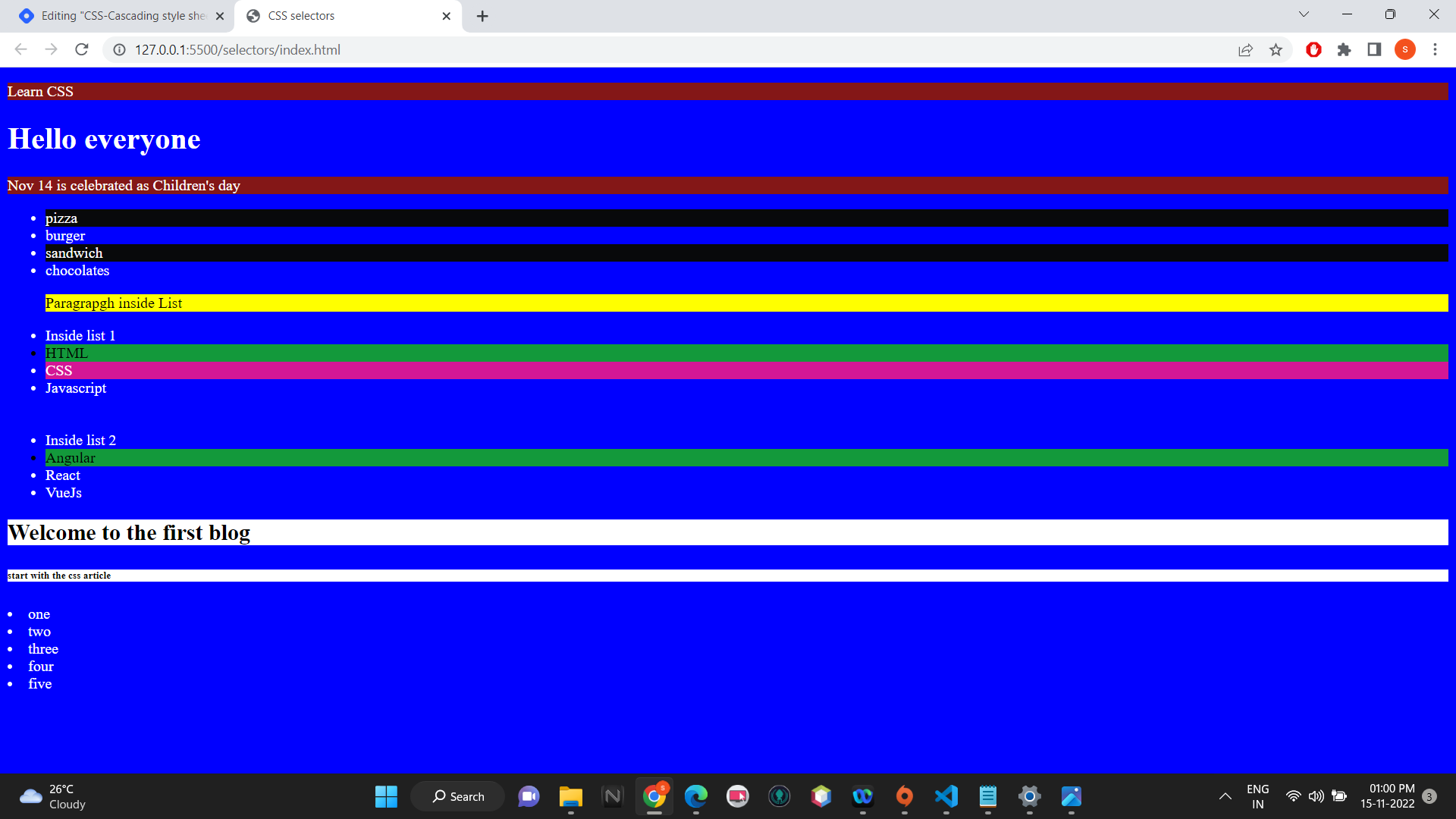
Result of inside and element:
7.Direct child:
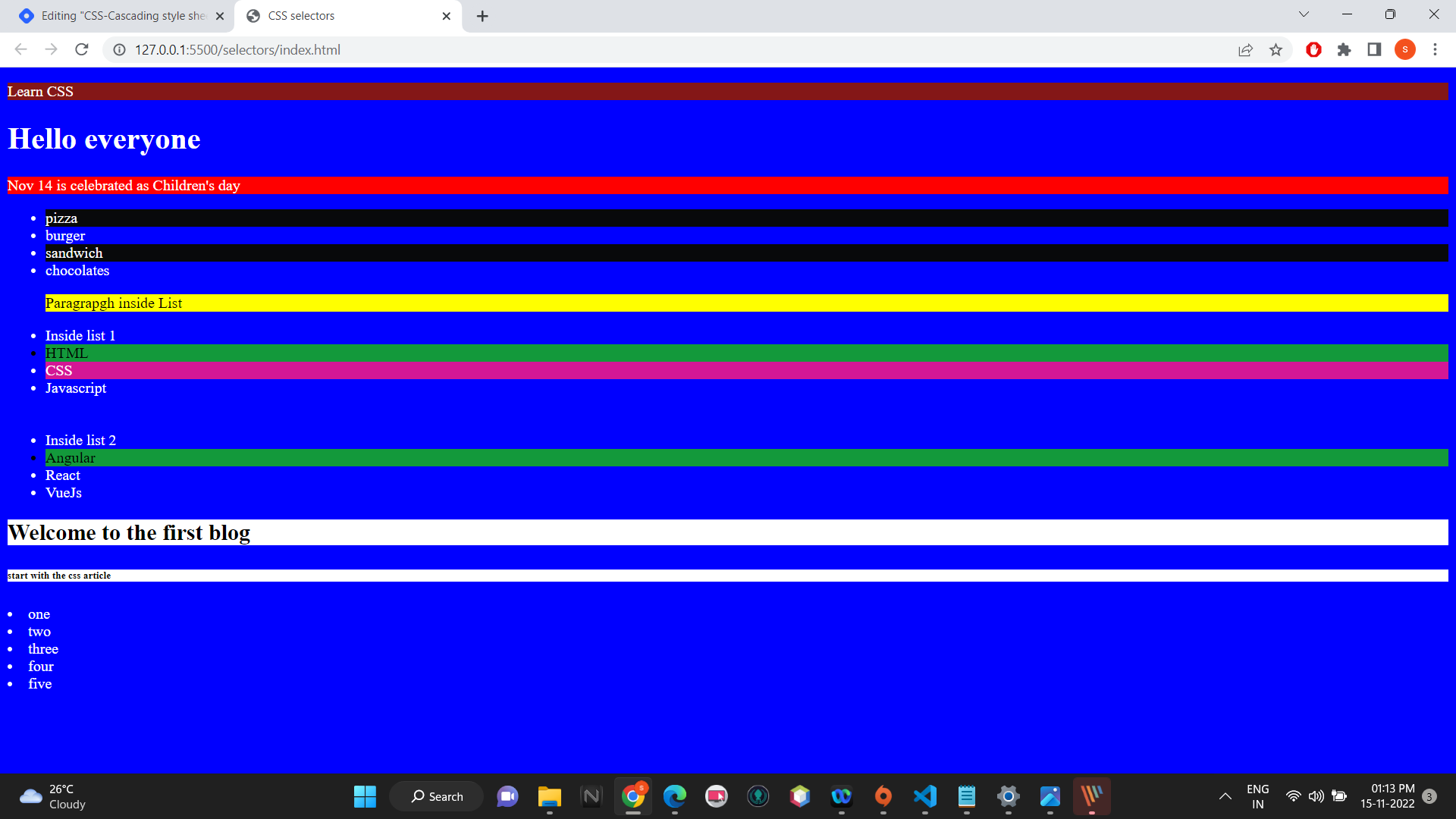
It selects the direct child element from the parent element.> symbol is placed in between the parent and child element. Example of direct child:
article>p{
            background-color: red;
        }
 <article>
        <p>Nov 14 is celebrated as Children's day</p>
        <ul>
            <li class="bread pizza">pizza</li>
            <li class="bread">burger</li>
            <li class="bread pizza">sandwich</li>
            <li>chocolates
                <p>Paragrapgh inside List</p>
            </li>
        </ul>
    </article>
Result of Direct child
8.Sibling selector:
A sibling selector is used to target the siblings elements who belong to the same parent element.+ symbol is placed between the sibling elements.
Example of Sibling selector:
.child+li{
            background-color:#6A1B4D;
        }
 <section>

            <li>one</li>
            <li>two</li>
            <li class="child">three</li>
            <li>four</li>
            <li>five</li>

    </section>
Result of Sibling selector:
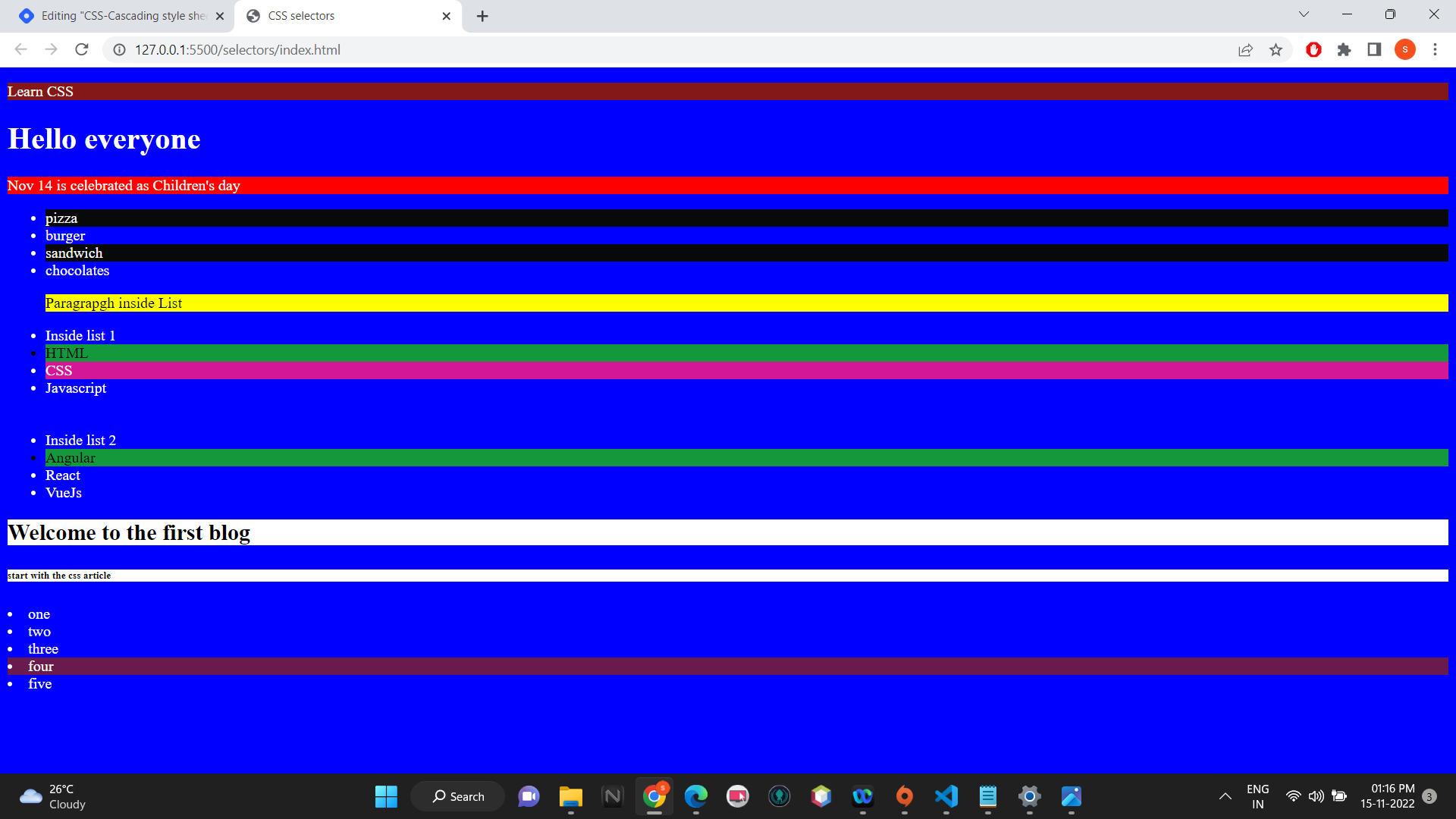
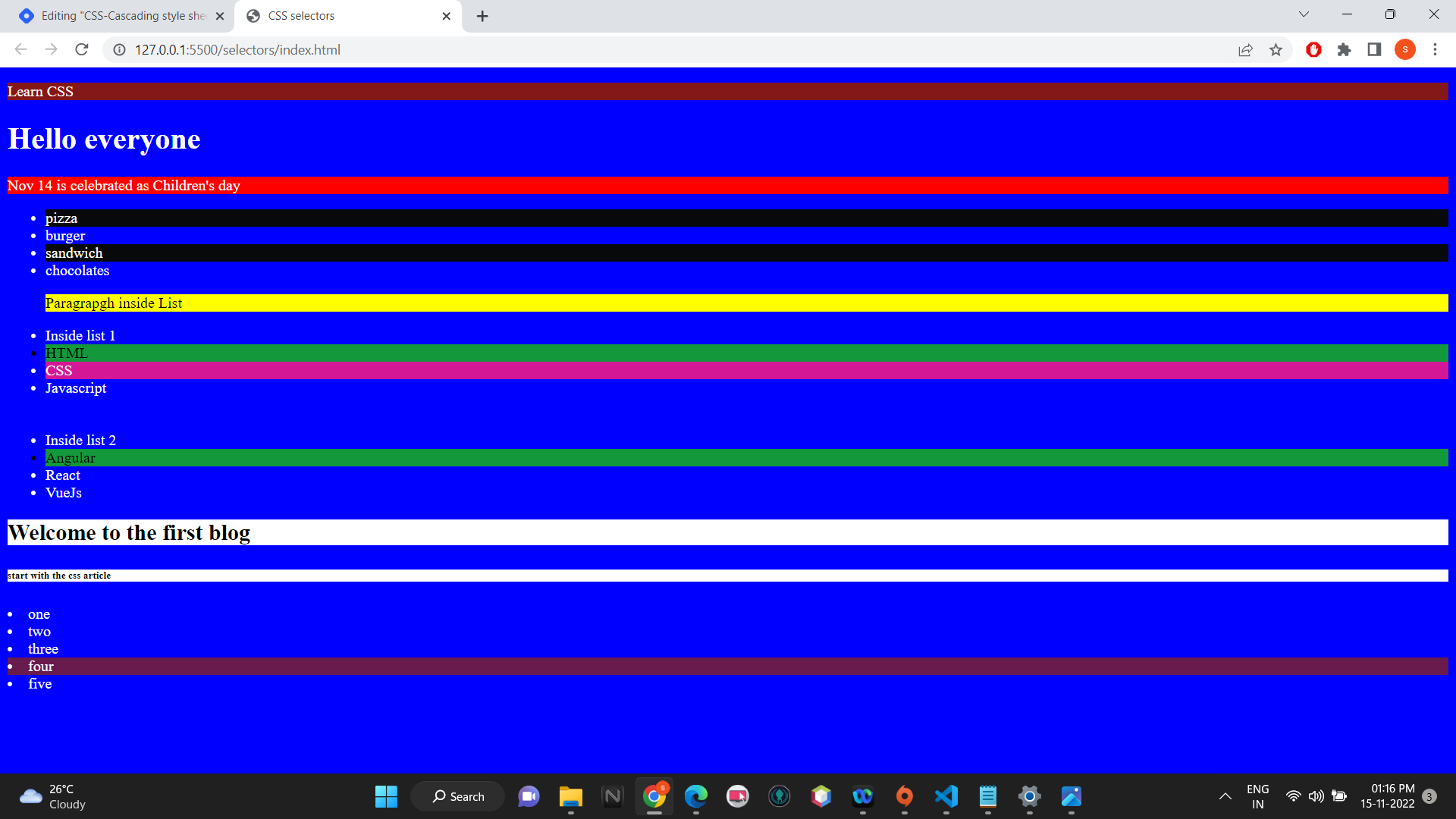
Complete code and result
<!DOCTYPE html>
<html lang="en">
<head>
    <meta charset="UTF-8">
    <meta http-equiv="X-UA-Compatible" content="IE=edge">
    <meta name="viewport" content="width=device-width, initial-scale=1.0">
    <title>CSS selectors</title>
    <style>
        *{
            background-color: blue;
            color:white;
        }

        p{
            background-color: #841717;
        }

        .list1{
            background-color: #13993b;
            color:black;
        }

        #inside{
            background-color: #d41795;
        }

        li.bread.pizza{
            background-color: #08090b;
            color:#FFF;
        }

         h2,h6
        {
            background-color: #fff;
            color:#000;
        }

        article ul li p{
            background-color: yellow;
            color:black;
        }

        article>p{
            background-color: red;
        }

        .child+li{
            background-color:#6A1B4D;
        }


    </style>
</head>
<body>
    <p>Learn CSS</p>
    <h1>Hello everyone</h1>

    <article>
        <p>Nov 14 is celebrated as Children's day</p>
        <ul>
            <li class="bread pizza">pizza</li>
            <li class="bread">burger</li>
            <li class="bread pizza">sandwich</li>
            <li>chocolates
                <p>Paragrapgh inside List</p>
            </li>
        </ul>
    </article>

    <div>
        <ul>
            <li>Inside list 1
                <li class="list1">HTML</li>
                <li id="inside">CSS</li>
                <li>Javascript</li>
                <br><br>
            </li>
            <li>Inside list 2 <br>
                <li class="list1">Angular</li>
                <li>React</li>
                <li>VueJs</li>
            </li>
        </ul>
    </div>

    <h2>Welcome to the first blog</h2>
    <h6>start with the css article</h6>

    <section>

            <li>one</li>
            <li>two</li>
            <li class="child">three</li>
            <li>four</li>
            <li>five</li>

    </section>


</body>
</html>